Quick answer: Most SMD screen problems come from a small set of causes: dead or dim modules, a failed power supply, a loose cable or receiving card, and colour mismatch from wrong settings. Start by finding out whether the fault covers one module, one cabinet or the whole screen. Then check power first, data second and content settings last. Anything that involves mains power should go to a qualified electrician.
Worldwide Electronics is an SMD LED screen supplier in Pakistan, and this guide covers the faults that appear most often on indoor and outdoor screens. Many of them look alarming but have a simple cause. A dark square, a flicker or a colour block can often be traced in under an hour if you work in a fixed order. The table near the end gives a quick reference, and the sections before it explain each check.
Start by Finding the Size of the Fault
Before you touch any cable, look at the screen and note exactly what is wrong. The size and shape of the problem tells you where to look:
- A single dark pixel or a few dots: usually one LED or a small module fault.
- A dark or flickering block of modules: often a cable, a connector or a receiving card.
- A whole cabinet or section off: most often the power supply or the data cable feeding it.
- The whole screen off or blank: check the mains supply, the controller and the main power switch.
Write down the time the fault started, whether it changed after a power cut, and whether it happens on all content or only on some. These notes help a technician fix the problem faster and stop you repeating the same checks.
Dead Pixels and Dark Modules
A dead pixel is a single LED that does not light. A dark module is a small group of LEDs, often a 16 by 16 or similar block, that stays off or shows the wrong colour. Single dead pixels are usually a failed LED, and the fix is to replace the module. Do not try to repair a single LED in the field unless your technician has the right tools and parts.
Before you replace anything, check whether the fault moves. Play a full white test pattern, then a full red, green and blue pattern. A fault that stays in the same place on every pattern is a hardware fault. A fault that appears only on one colour points to that colour’s LED or its driver chip.
Check the module connection as well. A module that is not firmly seated can look dead, and a loose connector can cause a cluster of dark pixels. Power the screen down, reseat the module and check the cable, then power it up again.
Flickering LED Screen
Flicker is one of the most common complaints, and it has several possible causes. Look at where the flicker appears. If it flickers across the whole screen, check the power supply and the input voltage. If it flickers in one area, check the cables and the receiving card that drives that area.
- Unstable mains supply: voltage that drops or spikes can make the screen flicker. Check the input voltage with the screen on, and ask an electrician about a stabiliser or UPS if the supply is unreliable.
- Loose data or power cable: a plug that is not fully seated can make a section flicker when the screen moves or the cabinets vibrate.
- Overloaded power supply: a unit running at its limit may flicker or cut out. Compare the load on each unit with its rating. Our power supply guide explains how to size and read a unit.
- Wrong refresh or scan setting: a mismatch between the controller setting and the module type can cause flicker on camera, even when the eye sees a steady image.
If flicker shows only on a phone or camera, it may not be a fault at all. Cameras and eyes see refresh patterns differently, and a screen can look steady to people in the room while showing lines on a recording. That is a refresh rate question, not a hardware failure.
Colour Mismatch and Colour Blocks
Colour problems usually fall into three groups. Each group has a different fix:
- Colour block or tint across a section: often a loose cable or a receiving card that is not sending the correct data. Check the connectors on that section first.
- Colour shift across the whole screen: usually the colour temperature or colour calibration setting in the controller software, or the white balance on the content. Reset the screen to its default colour setting and compare again.
- Two modules that do not match: modules from different batches can differ slightly in brightness and colour. A small difference is normal, but a clear mismatch on a new replacement module means the batch or the module type does not match the rest of the screen.
When you replace a module, always use one from the same batch and the same type. A mismatched replacement can look fine on the bench and still stand out on the wall, especially in a bright room.
Screen Not Turning On
A screen that does not turn on at all needs a careful, step-by-step check. Do the following in order, and stop if you find a fault:
- Check the mains supply. Confirm that the socket has power and that the breaker and the main switch are on.
- Check the input fuse on the power supply. A blown fuse often means the unit has failed or was overloaded. Do not replace a fuse with a higher rating to get the screen running.
- Check the power indicator on the unit. A light that is off or flashing can point to a fault. Check the label on the unit for what each light means.
- Check the controller and its cable. A controller that has lost power or is not connected will show no content on the screen. Our guide to the SMD controller for LED display explains how the controller and cabling fit together.
- Check for a burning smell or heat. If you notice either, switch off at the breaker and call a qualified electrician. Do not restart the screen.
Black Areas and Missing Sections
A black area that covers a full cabinet or a whole row of cabinets is usually a power or data fault, not a module fault. Trace the cabinets that are dark and find the power supply and receiving card that feeds them. If the unit is dead, check its output voltage with a meter if you have a qualified technician, or replace it with a unit that matches the original specification.
Look at the data cables too. A broken data path can stop one cabinet while the cabinets on the same chain keep working. Check the cable jackets for damage, and make sure each cable is fully seated at both ends.
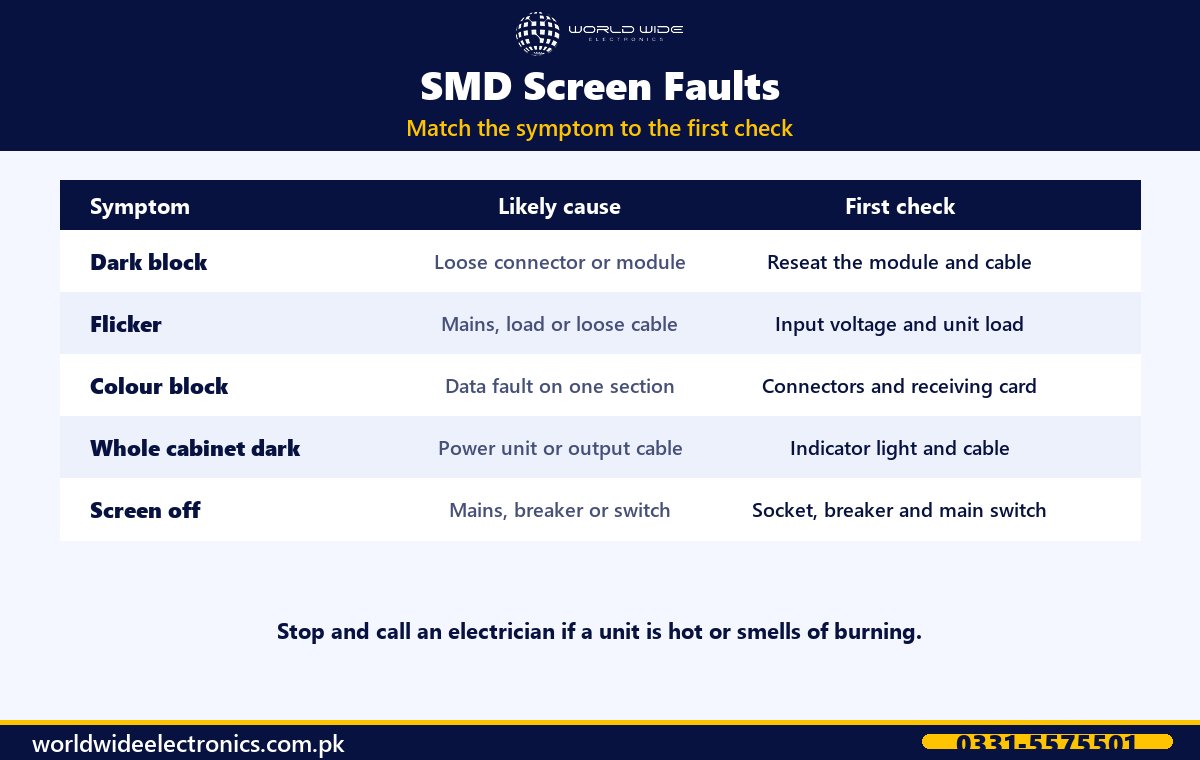
Quick Fault Reference
| Symptom | Most likely cause | First check |
|---|---|---|
| Single dark pixel | Failed LED | Replace the module, same batch |
| Dark block of modules | Loose or faulty connector | Reseat the module and its cable |
| Flicker across the whole screen | Unstable mains or overloaded supply | Input voltage and unit load |
| Flicker in one section | Loose cable or receiving card | Connectors on that section |
| Colour tint on one section | Data fault or loose cable | Cable and receiving card |
| Colour shift on whole screen | Colour setting in software | Reset to default colour settings |
| One cabinet or section dark | Power unit or its output cable | Unit indicator light and output cable |
| Whole screen off | Mains, breaker or main switch | Socket, breaker and main switch |
When to Call a Technician
Some checks are safe for the screen owner to do. Others are not. Call a qualified technician or electrician when:
- the unit is hot, smells of burning or makes a crackling noise
- a fuse blows again after replacement
- more than one cabinet is dark and you cannot find the cause
- the fault returns after a module or cable has been replaced
- the screen is outdoors and the seals or enclosure may be damaged
Keep a simple log for each fault, with the date, the symptom, what you checked and what you changed. A technician can use it to find the cause quickly, and it helps you spot repeat faults that point to a wider problem.
Preventing Repeat Faults
Most of the faults in this guide can be avoided with regular care. Keep the vents and filters clean, check cable connections on a schedule, and keep the screen away from water and dust. For the wider list of things that damage a screen, read 7 Things That Can Damage Your SMD Screen.
If you are buying a new screen or replacing a faulty one, check the warranty terms before you order. Our guide to SMD screen warranty lists the questions to ask a supplier.
Related guides: SMD Screen Power Supply Guide: Types, Ratings and Common Faults and 7 Things That Can Damage Your SMD Screen.
Frequently asked questions
Can a dead pixel be repaired?
A single dead LED is usually fixed by replacing the module it sits on, not by repairing the LED itself. Repair in the field is rarely practical. Ask your technician whether a replacement module is available in the same batch before you decide.
Why does my screen flicker only on camera?
Cameras capture the screen differently from the human eye, and a low refresh rate can show lines or flicker on a recording. A screen that looks steady in the room can still record badly. Check the refresh rate with the supplier, and see our guide on LED screen refresh rate before you film.
Is it safe to replace a power supply myself?
Power supplies carry mains voltage on the input side. Switch off at the breaker, and let a qualified electrician do the replacement if you are not certain of each step. A wrong voltage or wiring error can damage the modules.
Why does one module look a different colour from the others?
Modules from different batches can differ slightly in brightness and colour. A small difference is normal, but a clear mismatch usually means the replacement is from another batch or type. Use the same batch and module type for any replacement.