Quick answer: A sending card takes the video or image data from a PC or media player and passes it on over network cable. A receiving card sits on the screen, takes that data and drives the LED modules in its area. The sending card controls the whole chain, and each receiving card controls a section of the screen. A working LED screen needs both.
Every LED screen runs on a control chain, and the sending card vs receiving card question is the first thing to understand when you plan one. Both cards are small boards with a specific job, and they must match each other. If you are choosing control equipment, our team supplies and sets up the full range of LED controllers in Pakistan, and we can explain which combination fits your screen. This guide shows how the two cards work together, where each one sits and what to check before you buy.
What Does the Control System Do?
An LED display is a grid of pixels. Each pixel is made of red, green and blue diodes, and each diode needs a timed signal to show the right colour and brightness. The control system turns a picture file or a live video feed into those timed signals for every pixel on the screen. Without it, the modules are only a set of lights.
The control system has three layers. The first layer is the software on a PC, which sets the screen size, the layout of the cabinets and the content to play. The second layer is the sending card, which receives the content and packs it into data. The third layer is the receiving cards, which unpack the data and drive the modules. Brands such as NovaStar build their own sending and receiving card ranges, and the two parts are designed to work together. Mixing brands at the card level is not a safe shortcut.
What Is a Sending Card?
A sending card is the first hardware stop after the source. It takes the video signal or the stored content, splits the screen into the areas each receiving card will drive, and sends that data out over Ethernet cable. The sending card is usually installed inside the controller box, away from the screen, where the operator can reach it and where it stays protected from weather and dust.
The sending card also holds the screen map. It knows how many cabinets there are, how they are wired and which part of the picture belongs to each receiving card. If the map is wrong, the picture will appear shifted, mirrored or cut. This is why the sending card is set up with the cabinet layout, not just switched on.
What Is a Receiving Card?
A receiving card is mounted on the back of the screen, usually on or near a cabinet. It receives the data from the sending card through a network cable, then passes the correct pixel data to the LED modules through flat ribbon or data cables. Each receiving card drives a fixed group of pixels, so a fault on one card affects that section and not the whole screen.
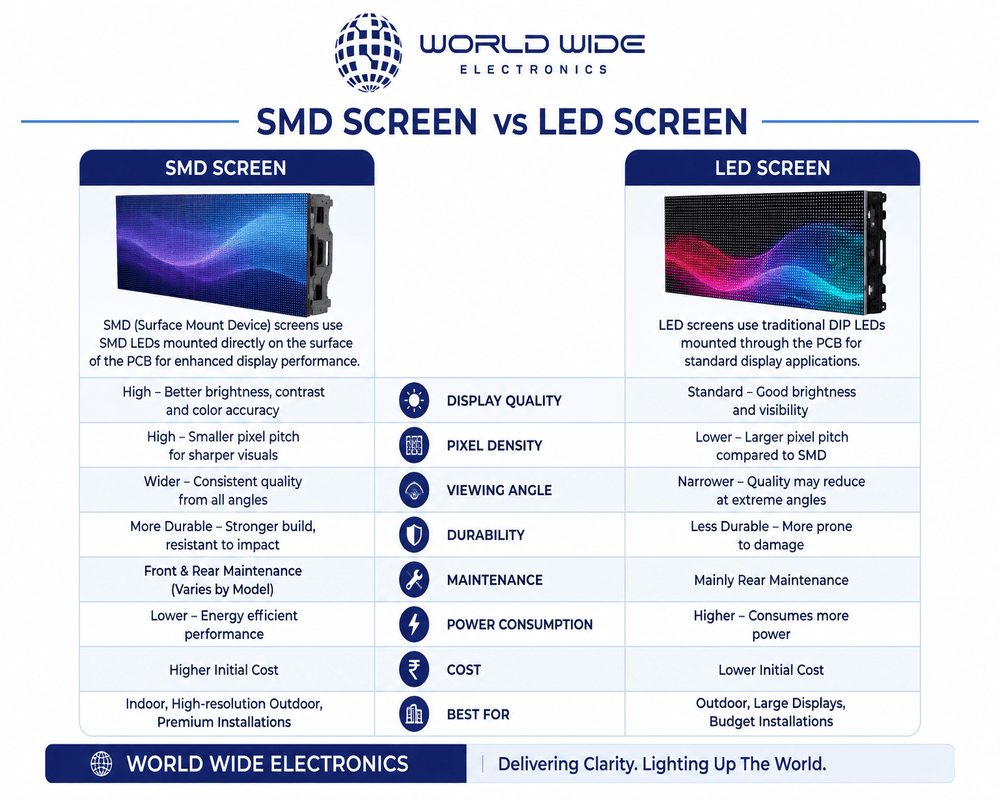
Receiving cards are also where the screen gets its brightness and colour correction. Calibration data is loaded into them, so the cabinets match each other. For a deeper look at the screen itself, read our guide on what an SMD screen is and how it is used, which explains the pixel structure that the cards drive.
Sending Card vs Receiving Card: Side by Side
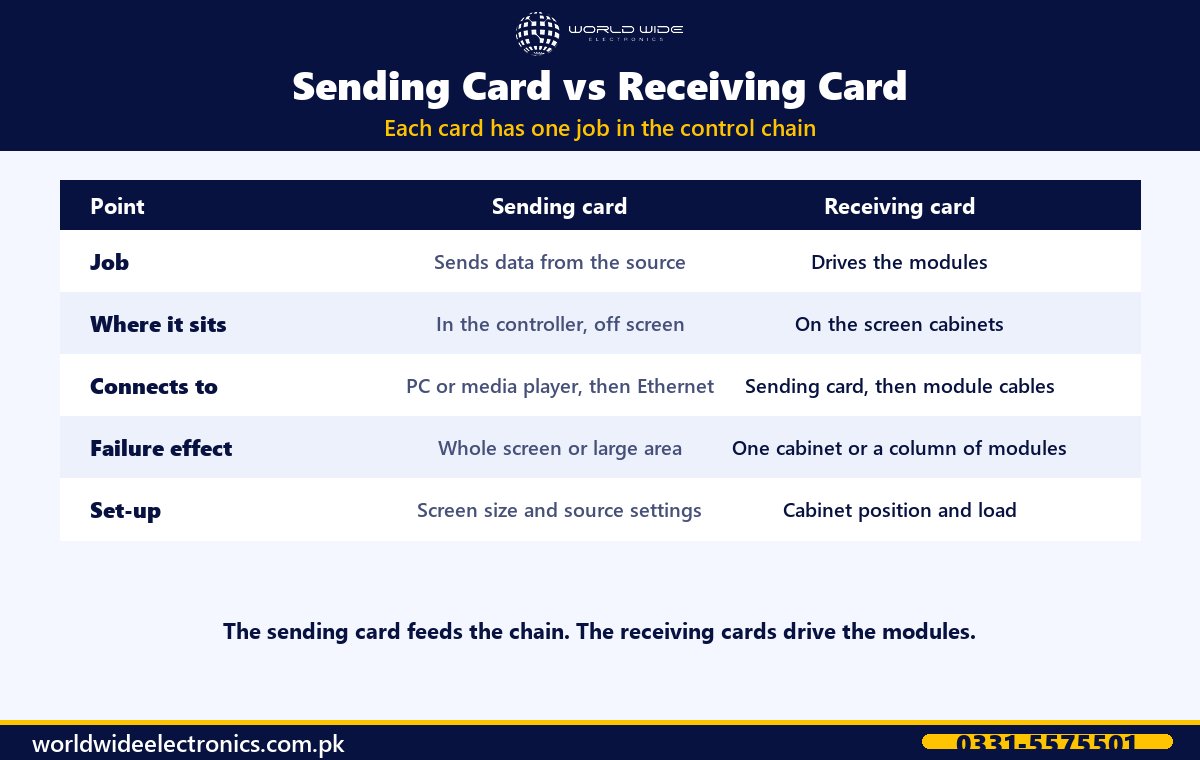
The table below gives a quick comparison of the two cards. The details vary by brand and model, so always check the manufacturer’s manual for the exact specification of the cards you plan to use.
| Point | Sending card | Receiving card |
|---|---|---|
| Main job | Sends content from the source to the screen | Drives the LED modules in its area |
| Where it sits | Inside the controller, away from the screen | On or near the screen cabinets |
| What it connects to | PC or media player, then receiving cards | Sending card, then the LED modules |
| Holds the screen map | Yes, the full layout of the screen | Only its own section of pixels |
| Effect of a fault | Can affect the whole screen | Usually affects one cabinet or a column of modules |
| Set-up work | Screen size, layout and source settings | Cabinet position, colour and brightness correction |
Read the table as a chain. Anything that goes wrong at the sending card reaches the whole screen. Anything that goes wrong at a receiving card reaches only its own area. That is why a sending card fault is usually the first thing a technician checks when the entire screen goes blank, and a receiving card fault is the first thing to check when one block of cabinets shows a fault pattern.
Synchronous and Asynchronous Control
The two main ways to run an LED screen are synchronous and asynchronous control. The difference is where the content comes from while the screen is playing.
- Synchronous control needs a live source connected all the time. A PC or video processor sends the picture as it plays, and the screen shows only what the source sends. This suits live events, camera feeds, concerts and any show where the picture changes on the spot.
- Asynchronous control stores the content on the controller itself, usually on an internal memory or a card. The screen plays the stored programme without a PC. This suits advertising loops, shop displays and public screens that run the same content for long periods.
Some systems support both modes. The choice depends on how the screen will be used, not on which mode sounds more advanced. A screen for a live event needs a reliable synchronous link and a backup source. A screen for a shop window needs a stable asynchronous player that restarts on its own after a power cut.
How the Signal Travels From the PC to the Screen
Following one frame of video through the system makes the roles clear. The PC or media player sends the picture to the sending card. The sending card cuts the picture into the areas each receiving card will drive and sends each part over network cable. Each receiving card takes its part, applies the stored correction and passes the pixel data to the modules. The modules then light the right diodes at the right brightness, many times per second, so the viewer sees one steady picture.
Because every step passes data on, a weak link anywhere in the chain shows on the screen. A loose network port can cause flicker, a damaged cable can cause a stripe, and a wrong screen map can move the whole picture. A technician usually checks the chain in order, from the source to the sending card, then the network cables, then each receiving card.
Which Setup Fits Your Screen?
There is no single control setup for every screen. The right combination depends on four things: the size and layout of the screen, the type of content, the need for live video and the location of the controller. A small indoor screen with a fixed playlist may need only a basic asynchronous setup. A large outdoor screen that shows live matches needs a synchronous setup with a stable network, protected cabling and a backup power supply.
Ask the supplier for a written screen map before you order. It should show the cabinet count, the wiring route and the number of receiving cards. This document protects you during installation and makes future repairs faster, because any technician can see which card drives which area.
Common Control Faults and What They Look Like
Most control problems show a clear pattern on the screen. Learning these patterns helps you describe a fault to the supplier and saves time on site.
- Whole screen blank. Check the power to the controller, the source connection and the sending card status light first.
- One block of cabinets black. The receiving card for that block, or its network cable, is the likely cause.
- Picture shifted or mirrored. The screen map in the sending card does not match the real cabinet layout.
- Flicker or random stripes. Check the Ethernet cable ends, the ports and any cable that runs near power lines.
- Colour mismatch between cabinets. The correction data in one or more receiving cards is missing or out of date.
Checklist Before You Buy Control Equipment
- Confirm whether the screen needs synchronous, asynchronous or both modes.
- Match the sending and receiving cards to the same brand and system, and confirm they are supported together.
- Ask for the screen map and wiring plan before the installation starts.
- Check that the cards can handle the screen size and the content resolution you plan to use.
- Ask about spare receiving cards and the replacement time for a faulty card.
- Confirm the software, updates and calibration support that come with the system.
Related guides: SMD Controller for LED Display: Complete Guide and What Is an SMD Screen? Full Form and Uses.
Frequently asked questions
Can I use a sending card from one brand with receiving cards from another?
Usually not. Sending and receiving cards exchange data in a format that each brand designs for its own system. Mixing brands can lead to missing sections, wrong colours or no picture at all. Always buy both cards from the same system and check the compatibility list from the manufacturer.
What is the difference between a sending card and a controller?
The controller is the box that holds the control hardware, and the sending card is one of the parts inside or connected to it. Some controllers are a single unit with the sending function built in. Others are separate boards. The job of sending the picture to the receiving cards is the same either way.
Does a receiving card store content?
Receiving cards mainly hold the correction data and the settings for their own section. The content for the screen is normally stored in the controller in asynchronous mode, or sent live from the source in synchronous mode.
Which control mode should I choose for a shop window screen?
For a shop window that plays the same loop of adverts all day, asynchronous control is usually the better choice. It keeps playing without a PC and can restart on its own after a power cut. Choose synchronous control only when the shop needs live content or changes the picture from a source on site.